Kittenville Controls Guide
Move, look, interact, and open Shop on PC or mobile without guessing fake keybinds.
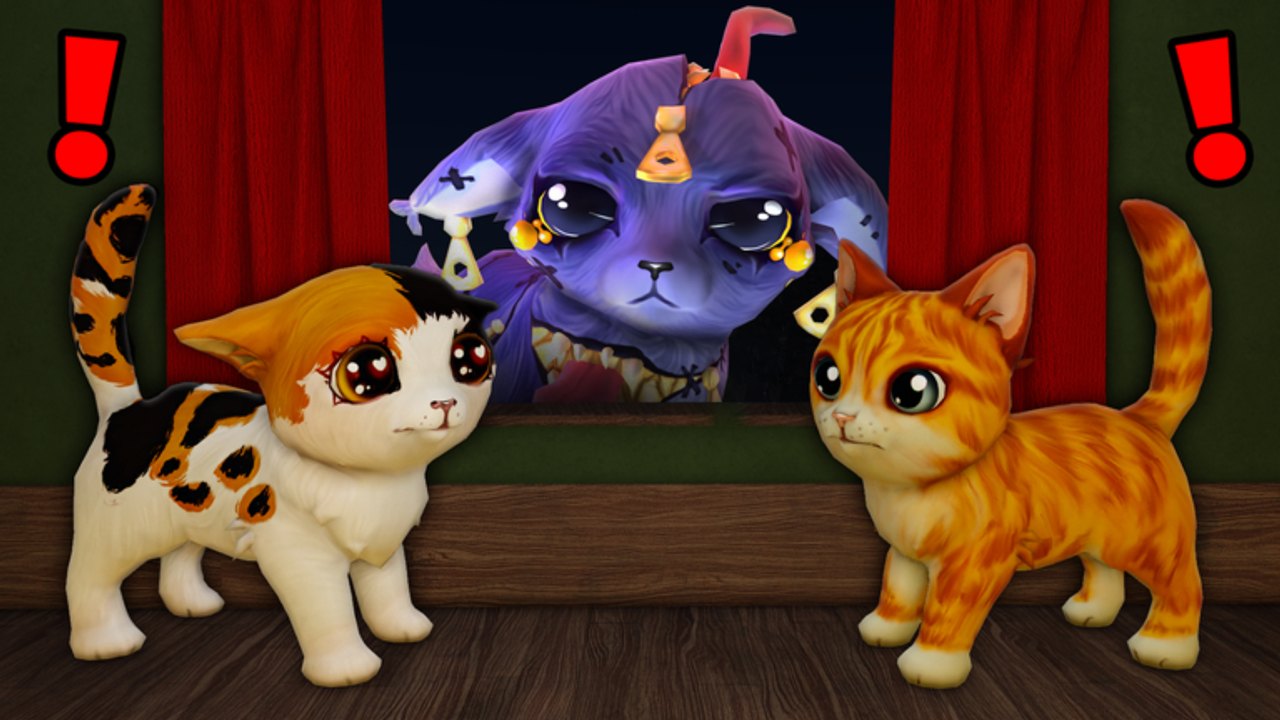
Clear controls turn Kittenville’s eight-minute matches and Open World loops from confusing to readable. This page sticks to what you can trust: standard Roblox movement and camera defaults, plus the in-game UI buttons Kittenville shows for roles, objectives, inventory, and the SHOP. We do not invent undocumented custom keybinds. If a patch remaps something, check the on-screen prompts and Roblox settings first, then return here for the role context.
New players should pair this page with Getting Started. Role specialists should continue into the Survivor Guide and Hunter Guide. Collectors who already cleared five matches can jump to Open World after the movement basics below.
PC defaults that almost every lobby uses
On keyboard and mouse, Kittenville rides Roblox’s familiar baseline:
- WASD — move your character.
- Mouse — look / aim the camera.
- Right mouse button (hold) — often used in Roblox to free-look or adjust camera depending on your shift-lock and camera mode settings.
- Space — jump when the experience allows jumping.
- Shift — sprint or walk toggle in many Roblox experiences; confirm in your Roblox movement settings if sprint feels wrong.
- E or the on-screen Interact prompt — use world objects when a prompt appears (feeding stations, pickups, doors, and similar interactables).
- Click — select UI buttons, confirm prompts, and attack or use role actions when the game shows a clickable control.
Because Kittenville can surface actions as UI buttons rather than unique hotkeys, always read the prompt near your crosshair or the bottom of the HUD. If a feeding station is ready, the interact affordance matters more than memorizing a letter that might change with Roblox accessibility options.
Open Roblox Settings → Keyboard & Mouse if you need to rebind movement, camera sensitivity, or shift lock. Sensitivity that is too high makes Hunter tracking shaky and Survivor camera checks unreliable around corners.
Mobile and touch basics
On phones and tablets, Kittenville follows Roblox touch conventions:
- Left virtual joystick — move.
- Drag on the right side of the screen — rotate the camera.
- On-screen Jump / Interact / action buttons — appear when the experience enables them for your role.
- Tap UI icons — open Shop, inventory, care actions, and menu panels the same way you would click on PC.
Hold the device so your thumbs reach the joystick and the primary action button without covering the objective UI. In Survivor matches, keep the feeding-station progress readable; in Hunter matches, keep enough screen clear to track fleeing players. If buttons feel tiny, use Roblox’s mobile UI scale options where available and close background apps that tank frame rate — choppy input loses chases more often than “bad aim.”
Survivor controls in practice
Survivors win by completing feeding stations, unlocking exits, and leaving before the eight-minute timer ends. Controls-wise, that means:
- Move with WASD or the joystick toward a station while checking camera corners.
- Stop on the interact prompt and complete the station interaction through the UI — do not walk away mid-progress unless the Hunter forces you off.
- Sprint in short bursts to break line of sight; endless sprinting makes you loud and predictable.
- When chased, steer with camera first, then movement — look where you want to turn before you commit WASD.
- At exits, approach only when the unlock state is clear on the HUD and a teammate can watch your back.
Deep station priorities and exit staging live on the Survivor Guide. This controls page only ensures you can actually trigger the interactions those tactics assume.
Hunter controls in practice
The Hunter denies stations and stops escapes. Practical control habits:
- Keep camera height comfortable so you can sweep long lanes without nausea.
- Strafe with A/D while tracking rather than only chasing in a straight W-line.
- When a Survivor interacts with a station, listen and look for the UI/world feedback that marks progress — that is your cue to rotate.
- Use the same interact and action buttons the HUD presents for Hunter abilities or attacks; do not assume a third-party “meta bind” list is accurate for Kittenville.
- Near exits late in the match, pivot the camera wider so you catch flank approaches.
Role decision-making — when to camp versus roam — belongs on the Hunter Guide. Master clean camera and movement first so those decisions are executable.
Open World: inventory, Cat Shop, and SHOP codes
After five matches, Open World unlocks. Movement stays the same Roblox defaults, but UI density rises:
- Open inventory from the on-screen inventory control to manage cats, eggs, and cosmetics.
- Use the Cat Shop from inventory anywhere on the map — you do not need a fixed vendor walk every time you buy or manage cats.
- Open the SHOP icon, scroll to Redeem Code, paste a working entry, and press SUBMIT. Active rewards such as STARFALL, ellivnettiK, and QUESTUPDATE1 are tracked on the Codes page.
- Care, fishing, and breakable interactions use on-screen prompts the same way match interactables do — walk up, wait for the prompt, confirm.
If Shop or inventory panels feel buried after an accessory update, re-open inventory first; Kittenville’s quality-of-life design intentionally keeps shopping portable. More collecting detail lives in How to Get Cats and the Open World guide.
Camera, shift lock, and comfort settings
Bad camera settings fake “bad controls.” Before you blame the game:
- Lower mouse sensitivity until you can track a strafing Survivor without overflicking.
- Try Roblox Shift Lock if you prefer locked third-person strafing; turn it off if it fights how you juke as Survivor.
- On mobile, reduce camera drag speed if small thumb movements whip the view too far.
- Stand still in a quiet Open World plaza and practice a full 360 turn so muscle memory settles before ranked-feeling matches.
Graphics quality that tanks FPS also tanks input. Prefer stable frames over maximum shadows when you are learning Hunter tracking.
Controller notes
Some players join Roblox with a gamepad. Kittenville will map to Roblox’s generic controller scheme when supported on your platform: left stick move, right stick camera, face buttons for jump/interact/confirm as labeled on screen. Because publisher docs for Kittenville emphasize PC and touch UI more than a custom gamepad overlay, treat on-screen button legends as the source of truth whenever a controller glyph disagrees with a fan chart.
Quick checklist before your next match
- Confirm WASD or joystick movement feels responsive in a safe spawn moment.
- Pan the camera a full circle without losing orientation.
- Find the SHOP icon and remember Redeem Code → SUBMIT for later.
- As Survivor, practice one full station interact without panic-canceling.
- As Hunter, practice strafing while keeping a moving target centered.
- After five matches, open inventory in Open World and locate Cat Shop without sprinting to a landmark.
What to read next
Controls are the floor, not the ceiling. Once inputs feel boring — that is the goal — specialize with Survivor and Hunter pages, then build your collection through Open World and cat guides. Bookmark the Guides Hub so this controls reference stays one tap away when a friend asks “what do I press?” mid-lobby.
Play Kittenville with Roblox defaults, trust the HUD prompts, and spend your mental energy on stations, exits, and cats — not on memorizing unverified key lists from random comments.
Frequently Asked Questions
Quick answers for Kittenville on Roblox.
What are the basic PC controls for Kittenville?
Use Roblox defaults: WASD to move, mouse to look, Space to jump when allowed, and the on-screen Interact prompt (often E) for stations and world objects. Always trust the HUD if a prompt appears.
How do mobile controls work in Kittenville?
Move with the left joystick, drag to rotate the camera, and tap the on-screen Jump, Interact, Shop, and inventory buttons the game shows for your role.
Where do I open the Cat Shop and redeem codes?
Open inventory to reach the Cat Shop anywhere in Open World. Redeem codes via SHOP → Redeem Code → SUBMIT; see Codes for working entries.
Does this guide list every Kittenville hotkey?
No. We document Roblox movement defaults and in-game UI actions only. Custom or undocumented binds are not invented here — check prompts and Roblox settings after updates.
What should I learn after controls?
Read Getting Started, then the Survivor Guide or Hunter Guide, and Open World after five matches.